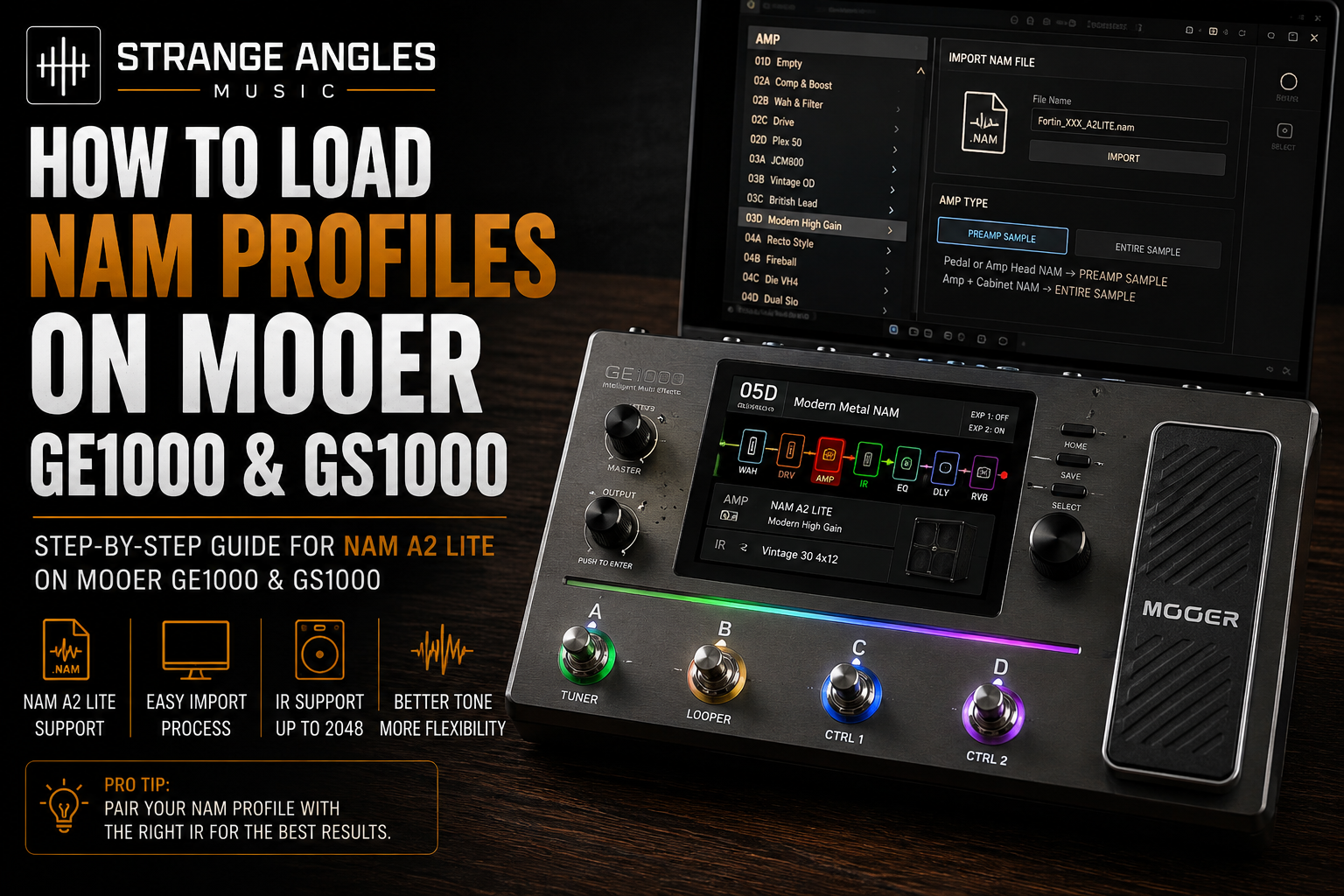
How to Load NAM Profiles on Mooer GE1000 and GS1000
Mooer's latest firmware updates have made the GE1000 and GS1000 even more useful for guitarists who want access to the growing Neural Amp Modeler ecosystem.
Both devices now support native NAM A2 Lite models, meaning compatible NAM files can run directly on the hardware without being converted first. NAM A1 models are handled differently and must go through Mooer's converter.
If you're new to NAM, the process can seem confusing at first. Here's what you need to know.
Looking for Great Tones?
Skip the endless tweaking and start with professionally captured NAM profiles featuring modern metal amps, boutique high-gain monsters, and classic favorites.
🎸 Browse Premium NAM Profiles →
Which Mooer Devices Can Load NAM?
The most important thing is knowing which NAM architecture your device supports.
Mooer GE1000
With firmware V3.1.0 and newer, the GE1000 supports native NAM A2 Lite models. The current V3.1.1 firmware also improves A2 Lite loading performance and volume balance.
Mooer GS1000
The GS1000 received native NAM A2 Lite support with firmware V1.3.0.
Mooer GE300
The GE300 supports NAM A1 models through its built-in converter rather than loading them natively.
Step 1: Update Your Mooer
Before loading NAM profiles, make sure your device is running compatible firmware.
For the GE1000, Mooer's current firmware is V3.1.1.
For the GS1000, the current NAM-supporting firmware is V1.3.0.
Always back up your presets before performing a firmware update.
Step 2: Make Sure Your NAM File Is Compatible
This is extremely important.
Not every NAM file works the same way on every Mooer device.
NAM A2 Lite
These models can load natively on the GE1000 and GS1000.
NAM A1
These models need to be converted using Mooer's converter before loading them onto the GE1000 or GS1000.
Step 3: Connect Your Mooer to Your Computer
Connect your GE1000 or GS1000 to your computer using USB.
Mooer's desktop software provides the tools needed for managing your device and importing compatible files.
Step 4: Import the NAM Profile
NAM files are imported into the AMP module on the GE1000 and GS1000.
This is an important distinction because NAM files aren't simply treated like ordinary presets.
Mooer recommends:
Pedal or Amp Head NAM → PREAMP SAMPLE
Amp + Cabinet NAM → ENTIRE SAMPLE
This allows you to use the model in the appropriate part of the signal chain.
Step 5: Add Your IR
If your NAM profile represents the amplifier without a cabinet, you'll want to add an impulse response after the amp.
A typical modern metal signal chain might look like:
Guitar → OD → NAM Amp → IR → EQ → Effects
For modern metal, try pairing your NAM profile with speakers such as:
Vintage 30
DV-77
Creamback
G12T-75
The IR can have a dramatic effect on the final sound.
Step 6: Build Your Preset
Once your NAM profile and IR are loaded, build the rest of your rig around them.
For a modern metal setup, you might use:
Noise Gate → Overdrive → NAM Amp → IR → EQ → Delay → Reverb
Keep the effects simple at first.
Get the core amp and cabinet sound right before adding a bunch of processing.
Great NAM Amps for Modern Metal
If you're looking for high-gain NAM profiles for your Mooer, start with amps such as:
Fortin Meshuggah
Extremely tight and precise.
Great for:
Djent
Progressive Metal
Drop tunings
Technical Metal
Fortin Evil Pumpkin
Aggressive and saturated.
Excellent for:
Metalcore
Deathcore
Modern Metal
Driftwood Purple Nightmare
Huge and aggressive with a massive low end.
Randall Satan
Tight, articulate, and designed for modern heavy music.
Omega Ampworks Obsidian
A boutique high-gain option with excellent clarity and definition.
Granophyre
Punchy, aggressive, and excellent for low-tuned guitars.
MLC Subzero
Focused and fast with a tight response.
RedSeven Leviathan
A versatile high-gain amp that works for both rhythm and lead tones.
And don't overlook the classics:
EVH 5150
Marshall JCM800
Marshall Plexi
Soldano SLO-100
Mesa/Boogie Dual Rectifier Rev G
NAM + IR = A Complete Guitar Rig
One of the biggest advantages of NAM is the ability to build a rig around the specific amp and cabinet sounds you want.
For example:
Fortin Meshuggah NAM
Vintage 30 IR
=
Tight, aggressive modern metal rhythm tone
Or:
Soldano SLO-100 NAM
Creamback IR
=
Smoother, more dynamic high-gain tone
Experimenting with the amp and IR combination can be more productive than endlessly adjusting EQ.
Common Problems
My NAM file won't load.
First, check whether it's an A1 or A2 Lite model.
A2 Lite models load natively on current GE1000 and GS1000 firmware, while A1 models require conversion.
My tone sounds thin.
Try a different IR before making major EQ changes.
My tone sounds muddy.
Try a tighter IR and reduce excessive low-end gain or bass.
My NAM profile is too loud or too quiet.
Mooer's latest GE1000 firmware specifically includes improvements to volume balance after NAM imports.
Frequently Asked Questions
Can the GE1000 load NAM A2 Lite?
Yes. Current GE1000 firmware supports native NAM A2 Lite models.
Can the GS1000 load NAM A2 Lite?
Yes. Native NAM A2 Lite support was added with GS1000 V1.3.0.
Can the GE1000 load NAM A1?
Yes, but A1 models are converted using the converter rather than loaded natively.
Can I use an IR with a NAM profile?
Yes. If the NAM model doesn't contain the cabinet sound you want, you can pair it with a third-party IR supported by your Mooer device.
Final Thoughts
NAM support makes the GE1000 and GS1000 significantly more flexible platforms for guitarists who want access to a huge variety of amp captures.
The key is understanding the difference between NAM A1 and NAM A2 Lite, keeping your Mooer firmware updated, and pairing your amp capture with an appropriate IR.
Once you've got those pieces sorted, you can build everything from classic rock rigs to extremely aggressive modern metal setups.
Ready to Upgrade Your Tone?
Explore professionally captured NAM profiles featuring Fortin, Driftwood, Randall, Omega Ampworks, Granophyre, MLC, RedSeven, Carstens, and classic high-gain amplifiers.
🎸 Browse Premium NAM Profiles →